How To Launch Your First Campaign With Beam
Introduction
Launching a digital advertising campaign shouldn't be complicated. Whether you're a small business owner looking to reach local customers or a marketing professional managing multi-location campaigns, Beam makes it simple to get your message on screens where your audience actually sees it.
In this comprehensive guide, you'll learn how to create your first campaign from scratch, set up targeting to reach the right locations, optimize your budget, and launch your ads across Beam's network of digital screens. By the end of this article, you'll have your first campaign live and reaching customers in high-traffic venues.
Table of Contents
What is a Beam Campaign?
Before You Start
Step 1: Create Your Campaign
Step 2: Choose Your Campaign Goal
Step 3: Choosing your Campaign Type
Step 4: Set Campaign Schedule
Step 5: Geographical Location Selection
Step 6: Select Location Types
Step 7: Set Campaign Budget
Step 8: Upload Your Campaign Media
Step 9: Review and Submit
Understanding Campaign Statuses
Tips for Campaign Success
Common Mistakes to Avoid
FAQ
What is a Beam Campaign?
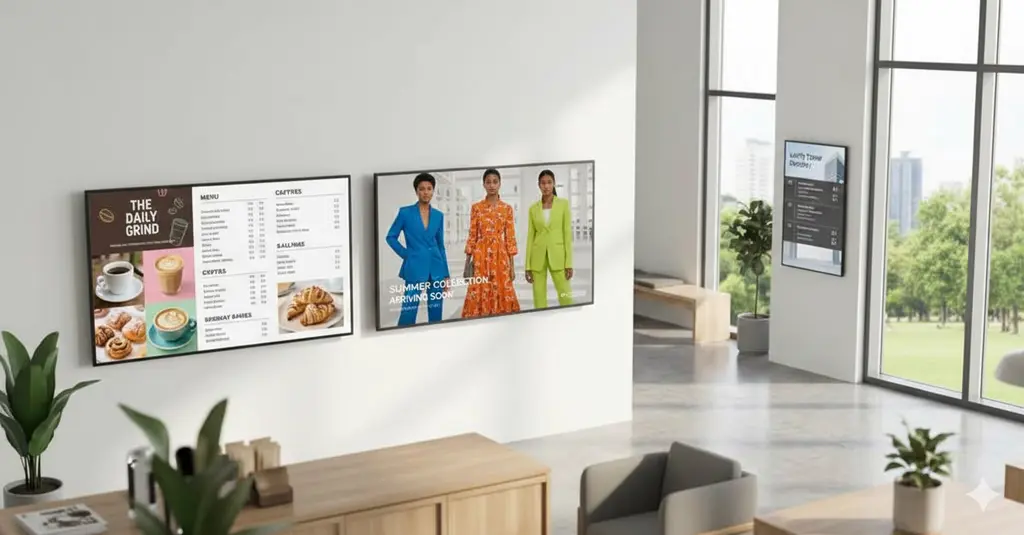
A Beam campaign is your digital advertising initiative that displays your content on screens in physical locations like retail stores, gyms, restaurants, and other high-traffic venues. Unlike traditional digital advertising that appears on websites or social media, Beam campaigns reach customers when they're out and about in the real world.
Each campaign consists of your ad creative (image or video), targeting parameters (where your ads appear), budget settings, and a schedule. Beam handles the technical distribution, ensuring your ads reach the right screens at the right time.
Before You Start
Before creating your campaign, make sure you have:
Your ad creative ready: Image or video file meeting Beam's specifications (PNG, JPG, MP4 recommended)
Campaign objectives defined: Know whether you're focused on brand awareness or driving sales
Budget determined: Decide your daily advertising spend
Target markets identified: Know which cities, states, or countries you want to reach
Location types selected: Understand which types of locations align with your audience
Pro Tip: Create your ad content using Beam's Design Studio with Canva integration for optimal screen display. See our article on How to Create Ad Content with Beam's Design Studio for details.
Step 1: Create Your Campaign
Log in to your Beam account at your dashboard
Navigate to Campaigns from the main menu
Click the "Create New Campaign" button
Here you will see the Basic Information section
Enter your campaign name: Choose a descriptive name you'll recognize later (e.g., "Spring Sale - NYC Area")
Your campaign starts as a draft, giving you time to configure all settings before going live.
You’ve completed Step 1-5. Go to Page 5 for the next steps.
Step 2: Choose Your Campaign Goal
Beam offers two campaign types, each optimized for different goals:
Branding Campaigns
Best for: Building awareness, introducing new products, reinforcing brand presence
Branding campaigns maximize your reach across the network, prioritizing the number of unique viewers who see your message. These campaigns are ideal when you want to make sure as many people as possible see your brand.
Sales Campaigns
Best for: Driving immediate action, promoting limited-time offers, generating conversions
Sales campaigns optimize for frequency and repetition, showing your ad multiple times to the same audiences to drive action. These campaigns are ideal when you have a specific call-to-action or time-sensitive offer.
Step 3: Choosing Your Campaign Type
Select the campaign classification that aligns with your objectives — such as media, insurance, financial services, legal, political, or pharmaceuticals. You may run multiple campaigns at the same time under different classifications, depending on your targeting and compliance requirements.
Step 4: Set Campaign Schedule
Campaign scheduling determines when your ads start and stop running.
Start Date & Time
Earliest start: Current date/time or any future date
Recommended: Allow 24-48 hours for campaign review and approval
Time zone: Automatically uses your account's time zone
End Date & Time
Set an end date: For time-bound campaigns (sales, events, seasonal promotions)
Run indefinitely: For ongoing brand awareness (you can pause anytime)
Minimum duration: Campaigns must run for at least 2 days
Setting Your Duration
Select start date and time using the date picker
Choose to set an end date or run continuously
If setting an end date, select the date and time
Pro Tip: For first campaigns, set a 7-14 day duration. This gives you enough data to evaluate performance without over-committing budget.
Step 5: Geographical Location Selection
Location selection determines where your ads appear. Beam offers flexible geographic targeting at three levels:
Country Level
Select the countries where you want your ads to run. This field is required to launch your campaign. Ideal for national brands or broad campaigns targeting multiple regions.
State/Province Level
Target specific states or provinces to narrow your campaign reach, making it ideal for regional businesses or location-focused promotions. This field is optional — leave it blank if you prefer to target the entire state.
City Level
Target specific neighborhoods or areas for hyper-local campaigns, ideal for local businesses or event promotions. This field is optional — leave it blank to reach the entire city.
How to Select Locations
Choose your targeting level (Country, State, or City)
Search and select from the dropdown menus
Add multiple locations as needed
Step 6: Select Location Types
Location types determine what kinds of establishments display your ads.
Available Location Types
Retail Stores: Shopping centers, boutiques, department stores
Restaurants & Cafes: Dining establishments, coffee shops, fast casual
Gyms & Fitness Centers: Health clubs, yoga studios, fitness facilities
Salons & Spas: Hair salons, nail salons, spa facilities
Medical Offices: Clinics, waiting rooms, health centers
Entertainment Venues: Theaters, entertainment centers, attractions
And more: Additional categories based on network availability
Selecting Location Types
Click "Select Location Types"
Check the boxes next to relevant location types
Select at least one location type (required)
Matching Your Audience:
Choose location types where your target customers spend time. For example:
Fitness products → Gyms and health stores
Restaurant promotions → Nearby retail and entertainment venues
Targeting Strategy:
Broad targeting (countries/states) = Higher reach, lower precision
Narrow targeting (cities) = Lower reach, higher precision
Mixed targeting = Combine multiple levels for optimal balance
Important: Your budget requirements increase with the number of locations added. The platform will update the minimum budget as you add locations.
Step 7: Set Your Campaign Budget
Your campaign budget determines how often your ad appears on screens. Beam uses a daily budget model, meaning you set how much you want to spend per day.
Understanding Budgets
Daily Budget: The maximum amount you'll spend each day your campaign is active. Your actual spend may be less depending on available inventory.
Minimum Budget: Beam calculates a minimum daily budget based on your targeting. This ensures your campaign can actually run with your selected locations.
Maximum Budget: There's also a maximum daily budget based on total available screen capacity in your target markets. You can't exceed this even if you wanted to.
Setting Your Budget
Enter your desired daily budget in the budget field
Review the performance estimate that appears beside the daily budget
Adjust if needed based on minimum/maximum recommendations
The platform will show you:
Estimated daily plays (how many seconds your ad will be played)
Estimated daily reach (number of potential viewers)
Cost per play (CPP)
Total Campaign cost (cost for entire campaign duration)
Pro Tip: Start with the recommended minimum budget for your first campaign. You can always increase it later based on performance.
Step 8: Upload Your Campaign Media
Your campaign media is what appears on screens, so quality matters. Follow these guidelines:
File Requirements
Supported formats: PNG, JPG, MP4, MOV
Recommended resolution: 1920x1080 (Full HD) or higher
File size: Maximum 100MB
Orientation: Landscape preferred (most screens are horizontal)
Duration (video): 15 seconds optimal
Design Best Practices
Keep text minimal: Large, readable fonts work best from a distance
Use high contrast: Ensure text stands out against backgrounds
Include your branding: Logo and brand colors should be prominent
Add a clear call-to-action: Tell viewers what to do next
Avoid fine details: Content should be visible from 10+ feet away
Uploading Process
Click “Upload Media” or choose an item from your Media Library or Design Studio.
Choose your file from your computer
Wait for upload confirmation
Important: All ad content goes through a brief review process to ensure it meets community standards. This typically takes less than 24 hours.
Step 9: Review and Submit
Before submitting, carefully review all campaign settings:
Review Checklist
✅ Campaign Name is descriptive and recognizable
✅ Campaign Goal (branding or sales) matches your goals
✅ Campaign Type matches your campaign classification
✅ Campaign Schedule matches your campaign timeline
✅ Geographical Locations include all target markets
✅ Location Types include all target location types
✅ Campaign Budget is set within a minimum/maximum range
✅ Campaign Media is uploaded and displays correctly
✅ Contact information is current for campaign notifications
Submitting Your Campaign
Verify all settings and confirm the final performance estimate.
Click "Publish" button
Wait for the confirmation email
Your campaign enters "In Review" status and will be evaluated by the Beam team, typically within 24 hours.
Understanding Campaign Statuses
Your campaign progresses through several statuses:
Draft
Your campaign is being created but not yet submitted. You can edit everything freely.
In Review
Your campaign has been submitted and is being reviewed by the Beam team. This ensures ad content meets community guidelines and quality standards.
Review time: Usually under 24 hours
Needs Revision
The review team has requested changes to your campaign (usually campaign media). You'll receive an email with specific feedback.
What to do: Update your campaign based on feedback and resubmit.
Approved
Your campaign has been approved and is ready to run. If your start date is in the future, it will automatically activate at the scheduled time.
Active
Your campaign is currently running and appearing on screens. You'll start seeing impressions and plays in your analytics.
Scheduled
Your campaign is approved, but the start date hasn't arrived yet. It will automatically become active at the scheduled time.
Paused
You've manually paused an approved campaign. You can reactivate it anytime.
Completed
Your campaign's end date has passed, or you've stopped it permanently. Completed campaigns cannot be reactivated, but can be duplicated to create similar campaigns.
Tips for Campaign Success
Start Small, Scale Smart
Begin with a limited geographic area and modest budget. Once you see what works, expand to additional locations.
Test Creative Variations
Run multiple campaigns with different campaign media to see what resonates. Even small changes in messaging or imagery can impact results.
Monitor Performance Daily
Check your campaign analytics regularly, especially in the first few days. This helps you catch issues early and optimize quickly.
Align Timing with Business Goals
Schedule campaigns around product launches, seasonal events, or when your business can handle increased traffic.
Use Clear Calls-to-Action
Include specific, actionable next steps in your campaign media. "Visit us today," "Scan QR code for discount," or "Ask about our special offer."
Leverage Local Events
Time campaigns around local events, holidays, or peak shopping seasons in your target markets.
Keep Creative Fresh
Update your campaign media every 4-6 weeks to prevent ad fatigue and maintain audience interest.
Common Mistakes to Avoid
Over-Targeting
Selecting too few locations or very narrow geographic areas limits your reach and may not generate enough impressions. Start broader, then narrow based on performance.
Ignoring Location Type Selection
Not carefully considering location types means your ads might display in areas where your audience doesn't spend time. Match location to your customer profile.
Skipping the Performance Estimate
The estimate provides valuable guidance on expected results. Review it carefully before submitting to ensure your budget and targeting align with your goals.
Using Low-Quality Creative
Blurry images, unreadable text, or poorly designed ads harm your brand. Invest time in creating professional, screen-optimized content.
Not Planning for Review Time
Submitting campaigns hours before you want them live doesn't account for review time. Submit 24-48 hours in advance of your desired start date.
Setting Unrealistic Duration
Very short campaigns (1-2 days) don't provide enough data for optimization. Conversely, very long campaigns without performance checks waste budget on underperforming ads,
Conclusion
Launching your first campaign with Beam is straightforward when you follow this step-by-step process. Start by creating a clear campaign name and choosing your objective, uploading quality campaign media, setting a realistic budget, targeting the right locations, and scheduling your campaign duration carefully.
Remember that your first campaign is a learning opportunity. Start conservatively with budget and targeting, monitor performance closely, and refine your approach based on real data. As you become more comfortable with the platform, you can experiment with broader targeting, larger budgets, and multiple simultaneous campaigns.
Ready to launch your campaign? Log in to your Beam account and click "Create Campaign" to get started today.
Related Articles
How to Create Ad Content with Beam's Design Studio
How to Track Your Campaign Performance on Beam
How to Optimize Your Campaign Budget and Targeting
How to Upload and Manage Media Files in Beam
How long does a campaign review take?
Most campaigns are reviewed within 24 hours during business days. Submit your campaign at least 48 hours before your desired start date to ensure timely approval. You'll receive an email notification when your campaign is approved or if revisions are needed.
What's the minimum budget to run a campaign?
The minimum budget varies based on your targeting selections. Beam calculates this dynamically based on your chosen locations and venue types. The platform displays the exact minimum when you configure your campaign.
Can I edit my campaign after it's approved?
You can pause, resume, or adjust the budget of approved campaigns anytime. However, changing targeting (locations) or campaign media requires resubmission for review. To make significant changes, it's often easier to pause the current campaign and create a new one.
Why was my campaign rejected?
Common rejection reasons include prohibited content (alcohol, tobacco, gambling without proper licensing) not being tagged appropriately, low-quality creative, misleading claims, or content that violates community guidelines. You'll receive specific feedback via email explaining the issue and how to address it.
How quickly will I see results?
Once your campaign goes live, you'll typically see impressions within the first few hours. Meaningful performance data accumulates over 2-3 days. Check your campaign dashboard 24 hours after launch to see initial metrics.
Can I run multiple campaigns at once?
Yes, you can run unlimited campaigns simultaneously. This is actually recommended for testing different campaign media, targeting different markets, or maintaining separate campaigns for different products or promotions. Each campaign has its own budget and targeting.
What happens if I reach my daily budget limit?
Your ads stop displaying for the remainder of that day once you reach your daily budget cap. They automatically resume the next day. This ensures you never exceed your specified daily spending limit.
Do I pay for the full budget if my campaign doesn't use it all?
No, you only pay for actual plays delivered. If your campaign doesn't reach the full daily budget due to limited inventory or targeting constraints, you're only charged for what was actually served.